
It has been a while since I have done a tutorial so in time for the season, here is the How-to create a custom Jack-o-Lantern pattern in Photoshop or Photoshop Express. What could be scarier on your front porch than George Ford (of Addanac City fame) greeting all the kids in the neighborhood. I swear I would pick on someone else sometime but the rest of you don’t post enough pictures on the web.
Step 1
 – Open a new document (I made mine about 8inx8in), paste your picture in the document and resize it so there is some white background showing.
– Using the brush tool, make a white border around the entire picture. I used a 10pt brush.
Step 2
 – Color the background layer black.
Step 3
 – Select Image>Mode>Grayscale
– You want to make sure the color is balanced. My original pic was too bright so you can adjust by going to Enhance>Adjust Lighting>Brightness/Contrast in Photoshop Express or Image>Adjustments>Brightness/Contrast in full Photoshop.
Step 4
 – Select Filter>Adjustments>Posterize (Express) or Image>Adjustments>Posterize (Full). Choose 3 levels and select and it will give you a Black, White and Gray Image. If the outline that you did in Step 1 is full white, change it to 50% gray. You should get above. You will notice that it has bits of color all over the picture that you don’t want to have to carve so,
– Using your pen too set to black, white or gray color in the image to remove some of the dithering and random color spots.
Step 5
 As you can see in the above pic I cleaned up the image to make it into cutable chunks. In the end you are going to want to shave off the skin of the gray area, cut the white area completely through, and leave the black area alone. Look at your white area. If there is danger of you cutting away detail of the gray you need to adjust your picture more. As you can see in the final template in the first image of this post, I added more gray area around the nose so I wouldn’t cut my nose to spite my face..haha
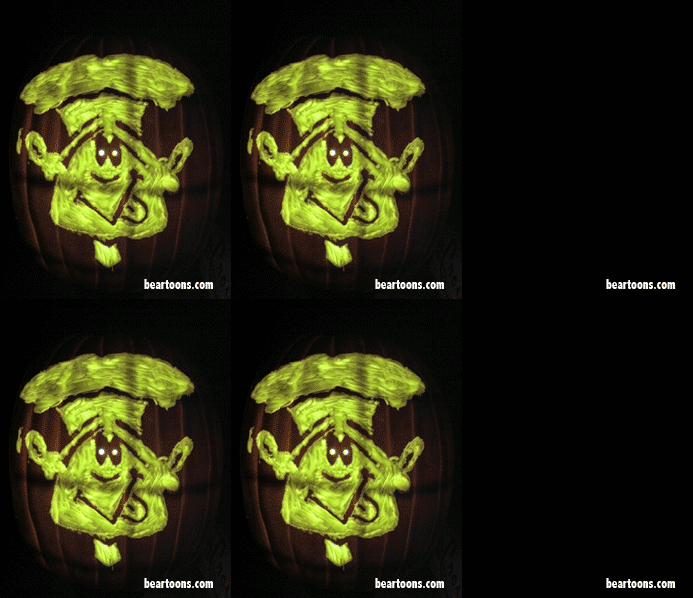
George was too scary to carve so instead I did Bearman.
Here is what it looks like unlit. It was my first time trying to use a dremel so I need to clean it up.
 As you can see, in this one I only posterized to 2 colors (black and white). For the white, I pulled off the skin and the black I left alone. I then put two full holes in the eyes.
Here is the the final look when lit.
And in case you want to make your own Bearman Pumpkin…here is the template.


